Twinsity release notes v2026.16.0
Enhance your inspection experience with our latest updates.
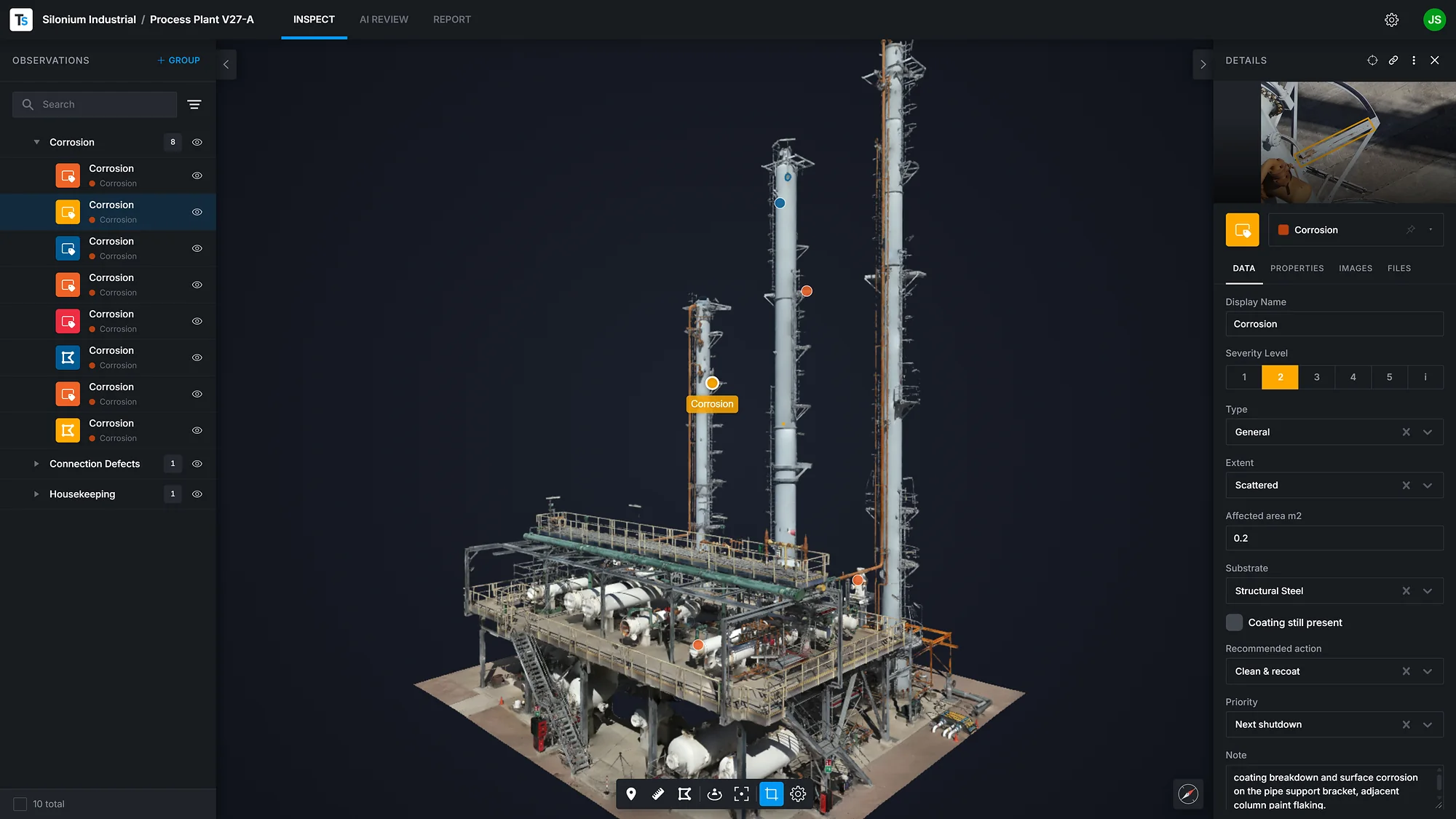
Key new features overview
This is the largest Twinsity™ release to date. The interface has been rebuilt, Observations have been reworked end to end, the Observation Profile Builder is new, and report building has moved into its own area. Changes to how existing features behave are collected together near the end, so nothing in this release takes you by surprise.
Annotations are now Observations
The word changes across the whole interface. An Observation is the record you create against something you have seen, and Annotation Templates are now Observation Profiles.
The vocabulary in full:
- Observation: the record itself
- Observation Class: the category an Observation belongs to
- Form: the set of questions asked on a Class
- Field: each individual question on a Form
- Observation Profile: the collection of Classes and their Forms
- Observation Profile Builder: the tool used to build a Profile
Note: Your data is unchanged. This is a change to what things are called, not to what they are.
A single home for your projects
The new project management area replaces the old set of separate pages with one place, where your projects, workspaces, people and Observation Profiles are all in view.
- One persistent workspace. The separate organisation, workspace, project list and management pages are gone. Moving between sections swaps the content in place, with no page reload
- Projects as a sortable table. Opening a project slides it in from the right rather than opening a dialog, and a 3D action opens it for inspection
- An organisation and workspace switcher in the rail, listing your organisations alongside a searchable list of that organisation’s workspaces
- Top level sections: Projects, Drafts, Profiles, Workspace and Organisation. Uploads is now called Drafts, and Templates is now called Profiles
- Consolidated settings. Workspace settings are now one page covering General, Members and Danger zone, with storage, project and member counts. Organisation settings cover General, Licence and storage, Workspaces, and People and roles
- Inspect, AI Review and Report sit as tabs beside the project name, replacing the old left sidebar
- The upload flow now runs inside the workspace with a restyled setup screen. The project type selector has been removed, since Tileset and 3D is the only type
Note: Your existing links and bookmarks continue to work. Old URLs redirect automatically.
Observation Profile Builder
The Observation Profile Builder lets your team define the Observation Classes it records and the Fields it records against, so an inspection is captured in the structure and the words you already use.
- Build a Profile per workspace, with a title and description, then define your Classes
- Order your Classes by dragging them into the order your team works in
- Add your own Fields to each Class. Eight types are available: text, long text, number, single select, multi select, checkbox, date and URL. Select Fields carry your own options
- Give each Class its own colour, which then shows on the Observation everywhere it appears
- A Quick Note Class is always present and cannot be removed, so a quick note is always available however the Profile is built
- Author in your own language. A per Profile authoring language sets the Profile’s fallback language, fixed once you begin editing an existing Profile
- Profiles in use are protected. Once a project references a Profile, changes that would destroy recorded data are blocked, so a Class, Field or option cannot be deleted and a Field type cannot be changed while the Profile is in use. Renaming, recolouring and adding stay available
- Three ways to start: a blank Profile, a copy of an existing one, or a duplicate from the Profiles list
Access to the Builder is controlled by permission within your workspace, so an administrator decides who can create Profiles.
Note: The Observation Profile Builder is available on Pro and Enterprise. Prospector keeps the default Observation Profile with quick notes exactly as today, and has free access to the Builder at launch. We will let you know in good time before that changes.
Observations: Groups, selection and filtering
- Groups. Observations can be organised into Groups. Groups sort to the top, arrive collapsed when a project loads, and show a count of everything inside them including anything nested
- Multi select and bulk actions. Every row has a checkbox and shift click extends a range. A bar at the bottom of the list shows the count and offers select all and clear. With a selection active you can create a Group from it, move it to a Group, or delete it in one action. ESC clears the selection
- A two part filter, by geometry type and by Observation Class at the same time, each with live counts. Filtering the list also hides the matching measurements in the 3D scene, so the list and the scene always agree
- Rows tinted by colour. The icon box takes the Observation’s resolved colour, replacing the type chip that used to sit on the right of the row
- A show and hide control on every row, with a muted state that tells you a parent Group is what is hiding it
- Go to Observation on hover, which frames that Observation in the 3D view
- Drag and drop has been tightened throughout, and a collapsed Group opens when you hover into it
A rebuilt Observation detail panel
The detail panel now sits at the right edge and slides, resizes and collapses. It stays open with nothing selected, and the width you set is remembered.
- Data: the display name, the severity selector and the Form for that Observation’s Class, split into Class specific and shared Fields where a Profile applies
- Images: source image, additional views and related images for image based Observations, or the report screenshot with an Update perspective control for 3D Observations
- Files: attachments with upload progress, previewing images, PDFs, video and photo domes without leaving the panel
- Properties: the Class, the Observation ID, audit information, and dimensions for measurements
- A colour of your own on any Observation. The colour follows it everywhere: the list row, image markers, map clusters, previews, the 3D scene and the PDF report
Note: An Observation with no colour of its own now takes its severity colour, so existing Observations may look different from how they looked before this release.
A calmer, sharper 3D view
- Two camera modes. Orbit, with a rotate or pan choice for the left mouse button, and Freelook, with panning, momentum and WASD movement
- A new background. A dark radial gradient replaces the old textured backdrop, and the grid and ground plane are hidden for a cleaner scene
- Sharper measurement lines, drawn at a constant on screen width with smoothed edges. Hidden segments stay faintly visible without overlapping lines interfering with each other
- Go to Observation now flies in rather than jumping, and frames the Observation square to the surface it sits on, so a wall is seen straight on and the ground from above
- The wheel zooms toward the cursor rather than the centre of the view
- A new 3D Settings panel: level of detail, scene brightness, the rotate or pan choice, fly to selection, and a three way Observation visibility control offering Normal, On top and Hide occluded
- Occluded Observations show faintly rather than disappearing behind geometry
- A reworked compass, set to true north with a click to face north, shown on georeferenced projects
- A rebuilt bottom toolbar, and a new full screen loading view
Images and drawing
- Drawing is now direct. Press and drag for a rectangle, click centre then edge for a circle, click each point for an area. ESC cancels a drawing in progress without closing the image
- Handles on the shape itself: move, rotate, resize, and a redraw handle that lets you draw a replacement shape in place
- Vertex editing. Right click a vertex to remove it, and use the plus control at the midpoint of a segment to insert one
- The controls now float over the image: a filename pill, a details popover carrying dimensions, file size, date, focal length, GPS and a raw download, and a toolbar along the bottom
- Step through images with the chevrons at the edges or the arrow keys, following whatever filter is active
- Markers on images now match the 3D view, as coloured discs that ring on hover and fill when selected
- Brightness, contrast and saturation now sit in their own panel and apply to your session. Saving them for everyone is a separate, deliberate action
- Picking a point in 3D marks it on the image, and clicking that mark zooms in on it
A new home for reports
Report building has moved into its own area rather than running inside a dialog that blocked the rest of the application.
- A dedicated Report area, with reports and their sections in two panes and a divider you can drag
- Preview the finished PDF without leaving Twinsity, with Download, Open and an information drawer carrying author, company, dates, language, units and summary
- Capture a section by clicking a face in the 3D view. That face becomes the section’s view plane and takes the screenshot
- Sections are drafts until you save them. A new section does not appear in the list until you commit it, and saving requires a captured screenshot
- The create form fills itself in: author, company, language, units, title and issue date, none of them copied from a previous report
- A section panel that matches the Observation panel, with an editable name, a zoomable screenshot and Observation markers drawn over it
AI Review
AI Review is now one of the three areas inside a project, alongside Inspect and Report. It uses the same layout as Inspect, and the panel shows detections grouped by class, an image viewer, the detection shapes, a confidence reading and a detail panel.
The AI detects. The inspector decides. Moving AI Review alongside the other two areas keeps that review inside the same workflow as the rest of the inspection rather than in a separate place.
Interface
- New typography. Inter across the interface, with IBM Plex Mono for coordinates, measurements and identifiers
- Rounded corners on buttons, inputs, cards, dialogs, badges and dropdowns, and a retuned dark theme
- Dialogs behave as one system, and panels scale with the window rather than sitting at a fixed width
- ESC behaves consistently across the application, closing one thing at a time in the order you opened it
- New Twinsity branding throughout, including the browser tab, a new icon set, the sign in and sign up pages, and the ability to add Twinsity to a phone home screen
Changes to existing behaviour
Collected here so nothing in this release catches you out.
Features that have been removed
- Express projects. Express is retired as of this release, as set out in the notification sent to affected customers. Existing Express projects can no longer be opened, and new Express projects can no longer be created
Note: If you have data in an Express project that you still need, contact us at support@twinsity.com.
- The standalone Cameras and Images area. Images now appear in context inside Inspect, and links to the old image mode open Inspect
- The full screen AI review view. Detections are now reviewed in the AI Review area, in the same layout as the rest of the project
- The Inspect menu bar carrying Main, View, Admin, Develop and Help. The header now holds the project breadcrumb, the area tabs, status badges and a settings control
- Drawing Line and Path on images. Both still display on images and remain fully editable
- The report wizard, replaced by the Report area
- Several report options, now always applied rather than switchable: the executive summary, high resolution images, geolocation, sorting and the statistics page
Behaviour that has changed
- Hiding a row hides only that row and no longer cascades to anything inside it
- The wheel zooms toward the cursor, not the centre of the view
- Double click depends on camera mode. In Orbit it recentres and repivots, in Freelook it moves you to face the point you picked
- 3D Settings, and image brightness, contrast and saturation, apply to your session and are not saved automatically
- Observation labels show the title only. The number plate is still stored and still works for deep links and search
- An Observation with no colour of its own now takes its severity colour
- Groups arrive collapsed when a project loads
- Distance and Path are now one Line tool. Two points give a distance, three or more give a path
- The project breadcrumb is the way back. Clicking the workspace name returns you to your projects
Fixes and improvements
- Being denied access to something now shows a proper page rather than a blank screen or a raw error
- A licence lookup that fails no longer empties the organisation area, which previously could leave a user who was not an organisation administrator with a blank application
- Statistics that fail to load now show nothing rather than showing zero, which was misleading
- Permission checks on Profiles and uploads are now correctly scoped to the workspace, fixing administrators seeing the wrong controls
- Signing out is now reliable where the same account was open in more than one tab
- An account with no organisation now sees a proper message rather than waiting on a spinner
- The account menu has been redesigned, carrying Contact and Support links and the choice between metric and imperial
- Screenshots now capture the model only, without the background or the clipbox, and without changing what is visible on screen
Alongside this there has been a large amount of work beneath the surface. It is not listed here, but it is why the application feels quicker and steadier than it did.
Although they were not specifically mentioned above, additional UI updates and improvements were made, having the best possible user experience in mind.
Do not hesitate to share your thoughts about these updates, or any other experience you would like to share with us. Having our users’ feedback is key to developing impactful features. If you notice errors in translations, please report them to support@twinsity.com.